Team invoices
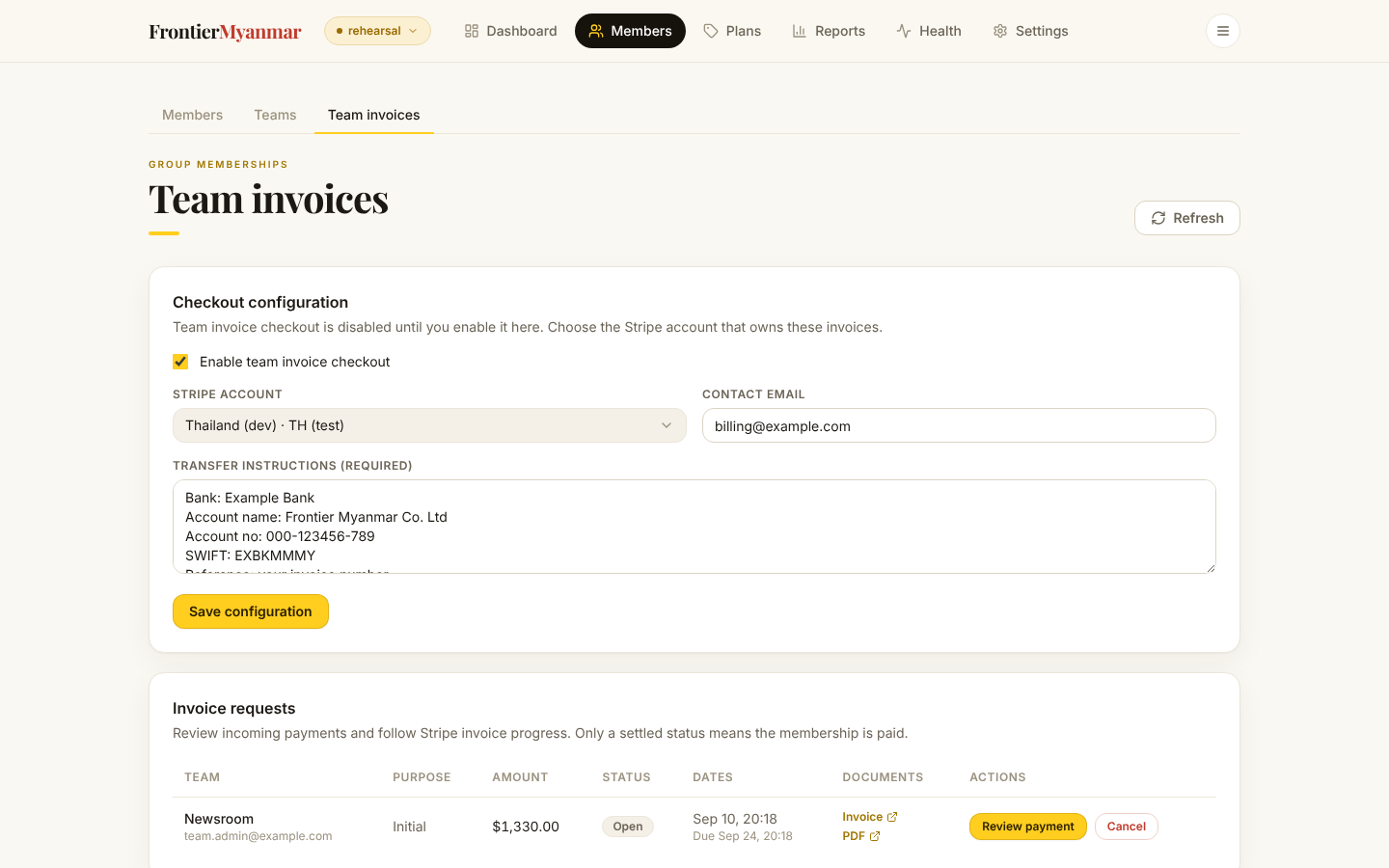
A team can pay for its seats against an invoice instead of a card. They pay by bank transfer, Wise, or the card link on Stripe's invoice. This screen is where you switch that on, send a team an invoice yourself, watch the invoices, and confirm the money arrived.
You'll need
- The Stripe account that should issue the invoices
- Your bank or Wise details, written the way a payer should copy them
- The email address a team should write to after paying
- The Finance, Membership manager or Owner role
Switch it on
- Open Members → Team invoices. Choose the Stripe account that owns these invoices.
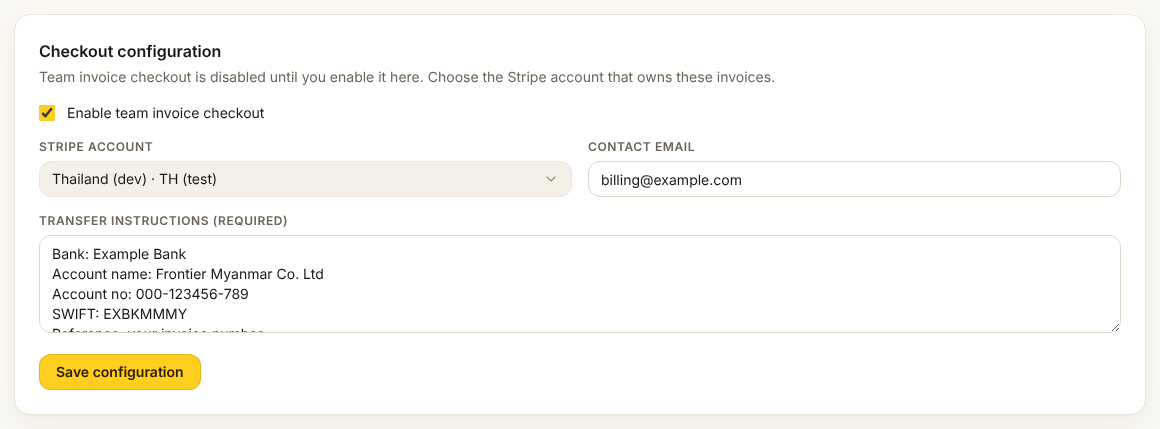
- Fill in Contact email and Transfer instructions. Both are required.
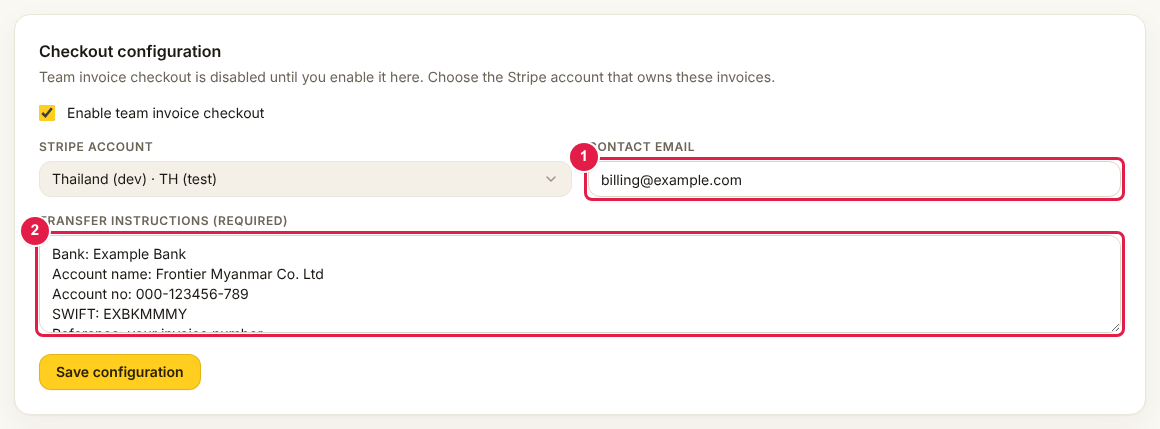
- Tick Enable team invoice checkout and press Save configuration.
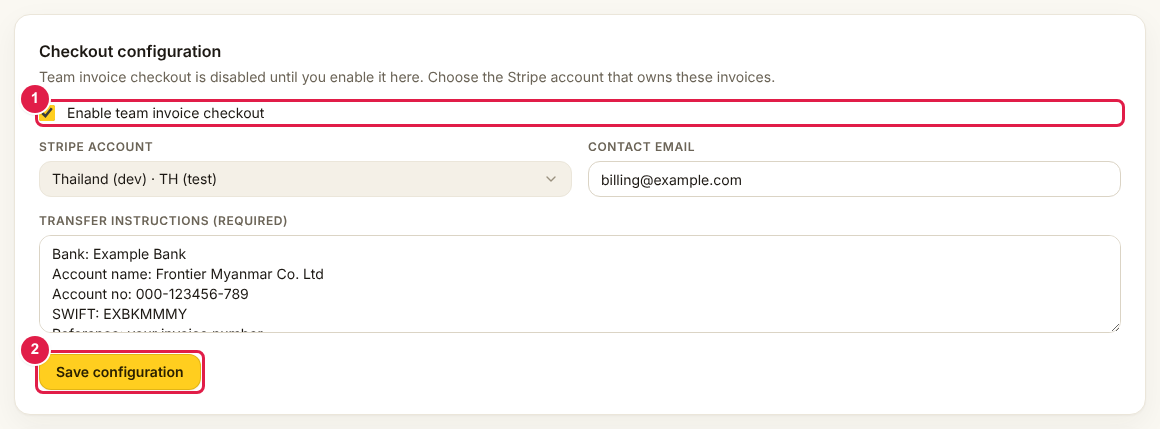
- Set Days to pay an invoice sent from the member page (1–60, normally 14) and press Save configuration. This is the default when staff change a member's plan and send an invoice, move a member to Stripe billing, or send a team its first invoice. It applies even while team invoice checkout is off.
The same account bills single members too
The Stripe account, Transfer instructions and Contact email here are also used when staff move a free or bank-paid member to Stripe billing by invoice. That works whether or not team invoice checkout is ticked. A member moved that way gets the Days to pay above for every renewal invoice.
From now on the team checkout page shows Request an invoice under the card form. Untick the box and save to hide it again. Invoices that already exist keep working.
The tick is only for the website. Staff can send an invoice from New invoice with it on or off, as long as the Stripe account and Transfer instructions are saved.
Send a team an invoice
Press New invoice at the top right of the screen. Only Finance, Membership manager and Owner see it. The New invoice page has two cards.
A new team billed by invoice
The first year for a team that does not exist yet. Nothing is charged and no team exists until the invoice is paid.
- Type the Team name and the Team admin email. The invoice goes to that address.
- Choose the Team plan, or type the Seats (incl. team admin). Each seat count from 3 to 100 has its own plan, and typing one picks it.
- Fill in Bill-to name and Bill-to address. They are printed on the invoice.
- Check Days to pay. It starts at the setting above. Add a Discount code if the team has one.
- Press Preview invoice. FMS checks everything and shows the amount, the discount, the issuing account, the due date, who is emailed and any membership the team takes over.
- Press Create and send invoice. You land back here with the new row marked and a green line saying who it went to.
The same form is on New team as the fourth Billing choice, Invoice — paid by bank transfer. Change any field after the preview and the preview goes away, so what you send is always what you saw. Change details does the same.
If FMS refuses, a red box above the buttons says why. Common reasons:
| Message says | What you do |
|---|---|
| No account, or the account cannot issue | Fix Checkout configuration above. |
| The admin already owns an active team | Change seats on that team instead. |
| An open first-year invoice already exists | Find it in the list. Resend it or cancel it. |
| Still on PMPro | Hand the person over first. See Hand everyone over to FMS. |
A seat change on an invoice-billed team
More seats for a team that already pays by invoice.
- Choose the team in the list. Greyed teams are billed by card, free or paid outside Stripe.
- Type the New seats. It must be more than today, up to 100.
- Press Request upgrade invoice, then Request upgrade invoice again in the box that asks.
The invoice charges the difference between the two plans for the rest of the year the team has paid for. The page shows the full-year difference as a guide. The seats change only when the invoice is paid. FMS refuses while the current year is unpaid or another seat upgrade is open.
Not possible yet
- Moving a team billed by card, a free team or a team paid outside Stripe to invoice billing.
- Lowering the seats of an invoice-billed team from the console.
Tell the owner if a team needs either.
Test keys only in a sandbox
The issuing account must match the environment you are in. In production the picker greys out test-mode accounts, and in a sandbox it greys out live ones. If the saved settings cannot issue invoices, a red box at the top of the card says why. Common causes are a test account saved in production, checkout switched on with no account chosen, and an issuing account left in read-only mode on Connections. Fix it before a team asks for an invoice.
What a request looks like
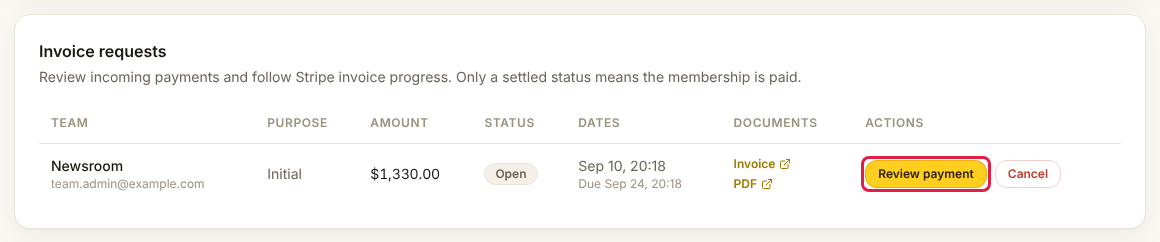
Each row is one invoice. The Status column tells you where it is. Ten show a page. Use the arrows and page numbers under the list, or choose more under Rows per page.
The search box above the list matches a team's name and the requester's email. Status and Purpose narrow the list. The line under them counts what matches, and Clear filters resets them. The list holds the newest 200 requests.
| Status | What it means | What you do |
|---|---|---|
| Awaiting verification | The team admin has not clicked a confirmation link. The FMS one and the website's one both count. | Ask them to check their inbox (and spam). If you know the address is theirs, press Mark email verified, then Mark email verified again in the box that asks, and the invoice is issued at once. |
| Queued | FMS is creating the invoice in Stripe. | Nothing. It takes under a minute. If Retrying or Needs a developer appears in Actions, see Something is stuck. |
| Open | The invoice is issued and emailed. It is due 14 days later, or after the Days to pay chosen on New invoice. | Wait for the money. Press Resend email if it went astray. |
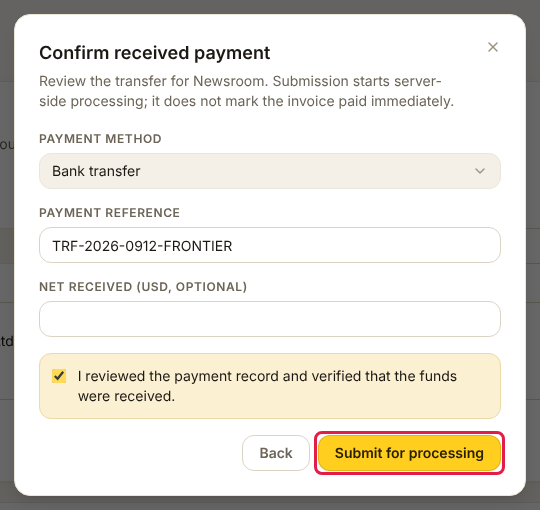
| Confirming | You recorded a payment and FMS is telling Stripe. | Nothing. Wait for Paid. |
| Paid | Stripe agrees the invoice is settled. The team is active. | Tell the team. |
| Canceled | Cancelled by staff or by the team admin. | Nothing. |
| Expired | Nobody paid within the window. | The team can request a new one. |
Purpose says First year (starts a team), Seat upgrade (adds seats) or Renewal.
A Requested by staff badge marks a request made on New invoice or New team, not by the team admin on the website. Open team goes to the team's page once the request belongs to a team.
Documents fills in once the row reaches Open: Invoice opens Stripe's hosted invoice page (the team can pay by card there) and PDF downloads the invoice. Both links stay on the row after payment.
Resend the invoice email
- Find the row with status Open and press Resend email.
- Press Resend email again in the box that asks.
FMS sends the same "your invoice is ready" email with the same link. The amount and the due date do not change. A green line says Sent with the number of times, and the row shows Email resent. You can resend a row once every ten minutes.
Where the confirmation email comes from
The confirmation link, "your invoice is ready" and "payment confirmed" emails are sent from the mailbox set on Settings → Email. If nothing is set there, WordPress sends them every five minutes through its own mail setup. That page also lists every recent member email and whether it left.
The email never arrived?
Look at Settings → Email first. If the message shows as Sent, ask the team admin to check spam. If you have spoken to them and the address is right, Mark email verified on the row skips the link altogether. It also unlocks their account on the website, which stops asking them to confirm their email.
Confirm a bank or Wise payment
Moves money
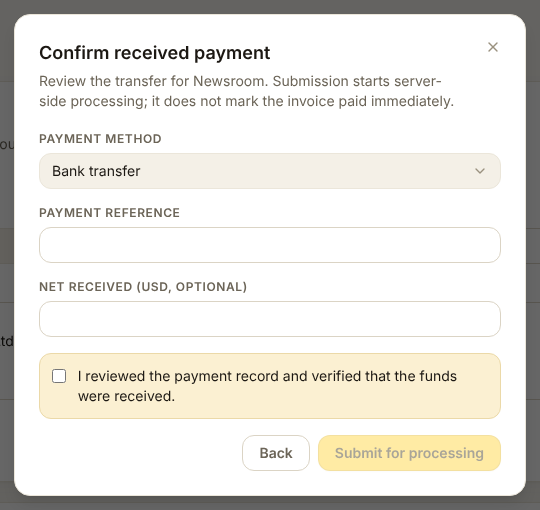
Confirming tells Stripe the invoice was paid outside Stripe. Only do it once the money is in the account. Check the amount and the reference first.
- Find the row with status Open and press Review payment.
- Choose the Payment method and type the Payment reference from your bank statement. Net received is optional: fill it in if bank fees were taken.
- Tick I reviewed the payment record, then press Submit for processing. The row turns to Confirming.
Check it worked
- The row reads Paid, not Confirming
- The team appears in Teams with its seats
- The team admin can sign in and see the team page
Paid by card instead?
If the team admin pays through Stripe's invoice link, the row turns Paid on its own. You do not confirm anything.
Cancel an invoice
Press Cancel on the row, then Cancel invoice request in the box that asks. Stripe voids the invoice, and the team admin sees it as cancelled.
This does not cancel a membership
Cancelling an invoice only stops that invoice. If the team already has a running membership, cancel it in Teams separately.
Renewals and more seats
- Stripe issues the next year's invoice on the anniversary, due 14 days later. WordPress emails the team admin 14 days before.
- If nobody pays within the 14 days, the seats stop working until payment arrives. The roster is kept.
- When the team admin asks for more seats, or you send a seat change, a prorated invoice appears here. The seats are added only after it is paid.
Why not use Record a payment on the member?
Record a payment is for memberships you granted by hand. Team invoices live in Stripe, so Stripe has to be told. This screen does that. Using the other form would leave Stripe thinking the invoice is unpaid.
Something is stuck
While a row is Queued, Confirming or Canceling, the Actions column shows how FMS's work with Stripe is going:
| You see | What it means | What you do |
|---|---|---|
| Processing… | FMS is working on it. | Nothing. Press Refresh in a minute. |
| Retrying · attempt N (amber) | The last try failed and FMS will try again. The next try's time is underneath; Stripe's own reason is folded under Details. | Usually nothing, because Stripe blips clear on their own. If the same reason keeps coming back, ask a developer. |
| Needs a developer (red) | FMS stopped trying. Stripe's reason is folded under Details. | A developer or an owner fixes the cause, then replays it from Dead letters using the link on the row (only they see the link). |
A wrong-environment account goes straight to Needs a developer on the first try, because retrying cannot fix it. Choose an account that matches the environment, save, then replay. A request that was deleted while its work was pending also goes straight to Needs a developer; its message tells you what to look for in Stripe before you delete the dead letter. Do not create a second invoice by hand.