Outgoing email
Operator page
Developers and owners only. A wrong setting here stops every email FMS sends.
FMS emails members during the team-invoice flow: the confirmation link, your invoice is ready, payment confirmed and a renewal reminder (some can be left to Stripe). It can also send membership emails of its own, such as "your membership ends soon", and receipts and card emails to members who pay through Opn. It emails staff when something needs a human, and sends a new colleague their sign-in details when an owner asks it to. This screen is where you tell it which mailbox to send from, and which membership emails to send.
Until you set this up, WordPress sends the member emails
The messages are queued in FMS and the WordPress plugin sends them every five minutes through its own mail setup. That works, but you are then relying on WordPress's mail configuration and WP-Cron. Once a relay is saved here, FMS sends them itself and WordPress is told to stand down.
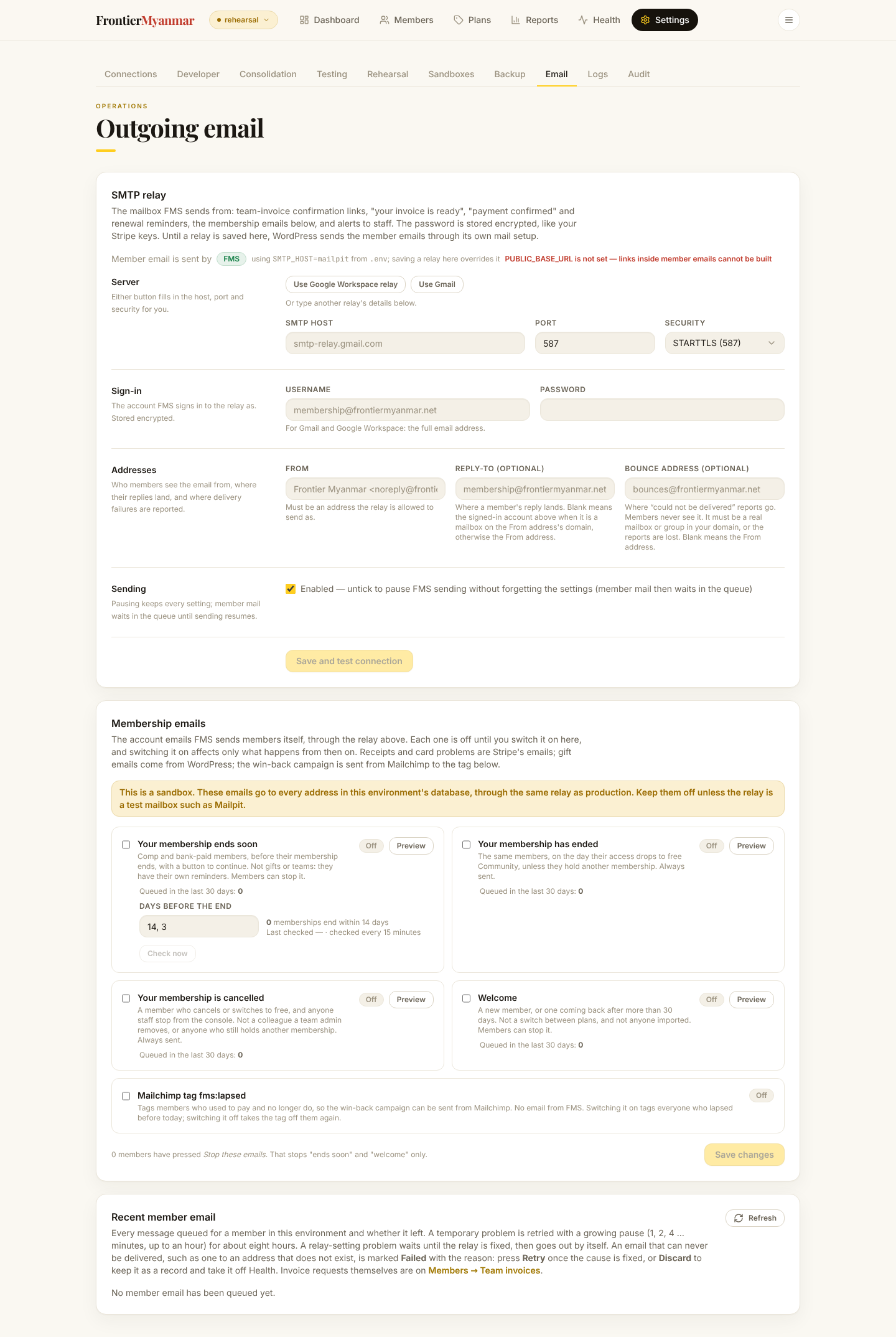
Set up the Google Workspace relay
This is the setup Frontier Myanmar uses. FMS signs in to Google's relay as the Workspace account that manages membership, and sends as noreply@frontiermyanmar.net.
You'll need
- A Google Workspace admin, for the relay rule
- The password of the membership manager account, with 2-Step Verification turned on
- A mailbox or group for bounces, such as
bounces@frontiermyanmar.net(optional)
- In the Google Admin console open Apps → Google Workspace → Gmail → Routing. Press Edit on the SMTP relay service rule.
- Set Allowed senders to Only addresses in my domains. Tick Require SMTP Authentication and Require TLS encryption. Press Save.
- Sign in to Google as the membership manager. Open Security → 2-Step Verification → App passwords. Name it "FMS relay" and copy the 16 characters.
- On this screen press Use Google Workspace relay. Host, port and security fill themselves in.
- Type the manager's address as Username. Paste the App Password. Spaces are fine.
- Set From to
Frontier Myanmar <noreply@frontiermyanmar.net>. Leave Reply-To blank to have members' replies land in the signed-in account (it is on the same domain as From), or set the address that should get them. - Optional: type the bounce mailbox in Bounce address.
- Press Save and test connection. A green line means Google accepted the sign-in.
- Type a Gmail address in Send a test to and press Send test.
- In Gmail open the test email. Choose ⋮ → Show original. SPF, DKIM and DMARC should all say PASS.
The App Password belongs to a person
Google cancels every App Password when that account's password changes or 2-Step Verification is turned off. Email then stops, and this screen says the relay rejected the username or App Password. Make a new App Password and paste it with Edit. Queued email then goes out by itself.
From does not have to be the signed-in account
With Only addresses in my domains, FMS may send as any address in the domain. Members see noreply@, never the manager's name. Their replies still reach a person: with Reply-To blank they go to the signed-in account, and the status block says so under Replies go to. That only happens when the sign-in is a mailbox on the same domain as From, as a Workspace account is. A relay login on another domain, such as a Mailgun or Brevo one, is never used, and replies go to noreply@ unless you set Reply-To. The same applies with the IP allowlist and no sign-in.
Using the IP allowlist instead of a sign-in
Google can also trust mail by the server's IP address. Leave Username and Password blank, and list the server's public IP on the relay rule. The saved test then says without signing in. This only works from that one server. A laptop or a second server is refused with Google's relay did not accept this server.
Why a bounce address
When an email cannot be delivered, the receiving server sends a report back to the envelope sender. Without a bounce address that is the From address, noreply@, where nobody reads it. Members never see the bounce address. It must be a real mailbox or group, or the reports are lost.
Set up plain Gmail
For a single Gmail account instead of the Workspace relay.
- In the Google account: Security → 2-Step Verification → App passwords. Name it "FMS" and copy the 16 characters.
- On this screen press Use Gmail. Host, port and security fill themselves in.
- Type the Gmail address as Username and paste the App Password. Set From to the same address.
- Press Save and test connection.
The From address with plain Gmail
Gmail sends as the signed-in address. For a different From, add it in Gmail first as a verified Send mail as alias. Otherwise Google quietly rewrites it.
What the emails look like
Every message uses one design: the yellow stripe, the Frontier Myanmar logo ("Frontier" in black, "MYANMAR" in red), a headline, a few sentences and one button. Press Preview design to see it in a browser tab without sending anything. The test email uses the same design. The logo is fetched from FMS's own address, so a mail client that blocks images shows the name in its place.
Check it worked
- Member email is sent by shows FMS
- The status reads Ready
- Bounces go to shows your bounce mailbox, or the From address
- The test email arrived, and Show original says PASS three times
- On Team invoices, a new request's confirmation email shows Sent in the Recent member email list within a minute
Membership emails
The Membership emails card lists the account emails FMS sends members itself. Each one is Off until it is switched on. Switching one on affects only what happens from then on. Nobody is emailed about the past.
Who decides depends on how the member pays:
| The member's membership | Its emails are decided on |
|---|---|
| Free access given by staff, bank transfer, a gift, a team seat, or Community | This card, under Memberships FMS manages itself |
| Paid by card on a Stripe or Opn account | That account's page: Settings → Connections → Manage → Membership emails |
The two never combine
A card member's emails come only from their payment connection. Switching Welcome on here does not welcome them, and switching it off here does not stop it. A member with two memberships, such as a card plan and a team seat, can get an email from each.
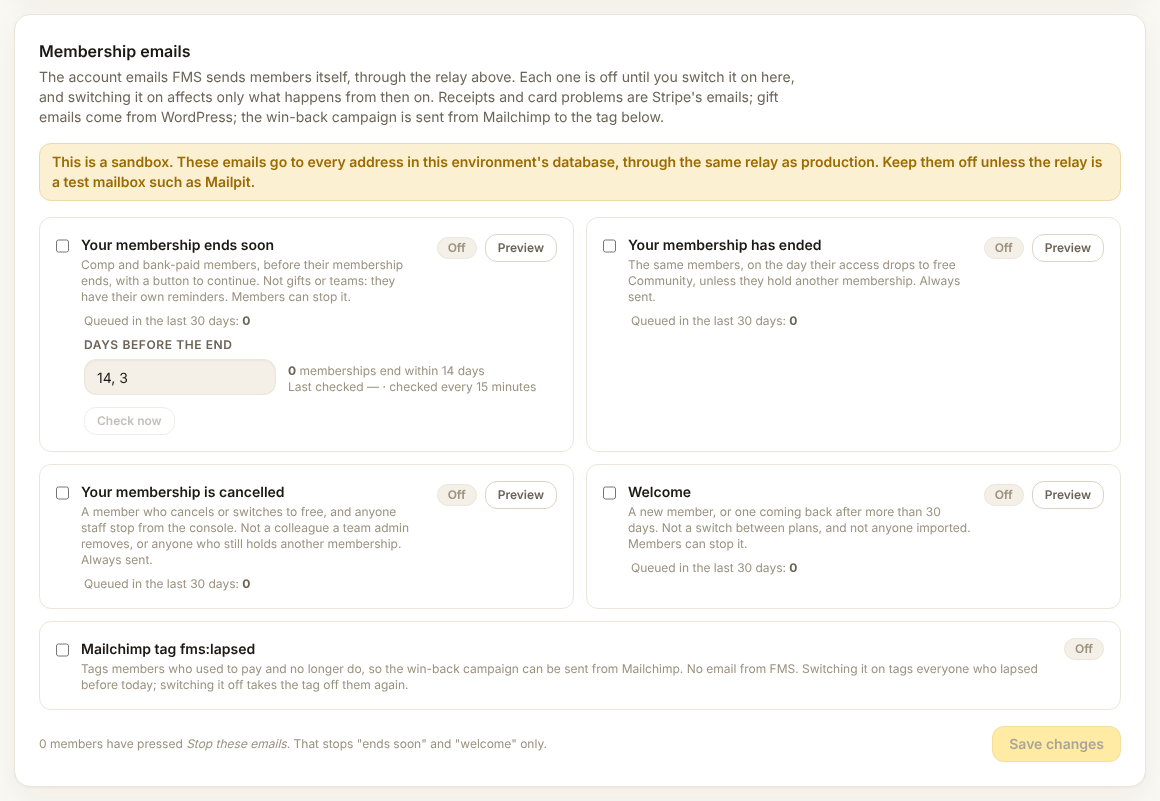
Memberships FMS manages itself
These switches decide for members with free access, bank transfer, gifts and team seats. Tick one and press Save changes.
| Who gets it | Can the member stop it? | |
|---|---|---|
| Your membership ends soon | Members with free access or paying by bank transfer, before their membership ends. It has a button to continue by card. Not gifts or teams: they get their own reminders. | Yes |
| Your membership has ended | The same members, on the day their access drops to free Community. Not someone who still has another paid or free-access membership. | No |
| Your membership is cancelled | One of these members who cancels or switches to free, and anyone you stop with Stop on the member page or the members list. Not a colleague a team admin removes, and not someone who still has another membership, such as a duplicate you remove from Consolidation. | No |
| Welcome | A member given free access, a gift or a team seat, or one coming back after more than 30 days. Not Community, not a switch between plans, and nobody imported from PMPro. | Yes |
| Mailchimp tag fms:lapsed | No email. Tags every member who used to pay and no longer do, however they paid, for the win-back campaign. | — |
Press Preview on a row to see that email with example details. The counts under Welcome and Your membership is cancelled say every member: they include the card members their connections emailed.
Days before the end sets when "ends soon" goes out. The default is 14, 3: one email two weeks before, one three days before. A member first reached three days out gets only the second one. If you extend someone's membership, the reminders start over for the new date. FMS checks every 15 minutes. Check now checks straight away, and also looks for Opn renewal reminders that are due.
Check imported end dates before you switch on "ends soon"
The first check emails everyone whose membership ends within the window. End dates imported from PMPro decide who that is. Look at the members due to end soon before you switch it on. The card shows how many there are.
Every "ends soon" and "welcome" email ends with Stop these emails. The member sees a page with a button, and their mail app's own unsubscribe button works too. The card shows how many members have pressed it. It never stops the account emails, receipts, card emails, invoices or newsletters.
Members billed by a payment connection
The table under Members billed by a payment connection shows every Stripe and Opn account. It is read-only. Press Manage to change an account's switches on its own page.
| Column | Shows |
|---|---|
| Connection | The account. Disabled means it takes no new members, but it still emails the ones on it. |
| Provider | Stripe or Opn. |
| Members | Card memberships on it now: the members its switches decide for. |
| Welcome, Cancelled | On or Off, for both kinds of account. |
| Payment received, Renews soon, Payment failed | On or Off for an Opn account. Renews soon shows how many days before. A Stripe account reads Stripe's own. |
Omise sends members no email at all. These three are the only receipts and card emails an Opn member gets:
| When it goes | Can the member stop it? | |
|---|---|---|
| Payment received | After every successful charge, the first one and each renewal. It links to the receipt on the member's billing page. | No |
| Your membership renews soon | The set number of days before each renewal, with the price and the card. Not for a membership set to cancel. | No |
| We couldn't charge your card | When a renewal charge fails. It says when FMS tries again, or how long access lasts, or asks the member to confirm the payment. | No |
Stripe sends its own receipts, renewal reminders and failed-payment emails. Switch those on in the Stripe Dashboard under Settings → Emails. A connection added later starts with every email off.
In a sandbox
The card and each connection's page show an amber note in a sandbox. There the emails go to every address in that environment's database, through the same relay as production. A sandbox copied from production starts with every membership email off, on this card and on every connection, and with the invoice emails off. Keep them off unless the relay is a test mailbox such as Mailpit.
Invoice emails
The Invoice emails card switches three emails FMS sends invoiced teams and members billed by invoice (members moved there from Change plan → Move to Stripe billing). Stripe can send the same emails itself from the Team invoices issuing account. Keep each one on in one place only: here, or in that account's Stripe Dashboard. All three start On, because FMS has always sent them.
| Who gets it | Stripe's own setting that sends the same thing | |
|---|---|---|
| Your renewal invoice is ready — members billed by invoice | A member billed by invoice, each time Stripe raises the next period's invoice. Carries the pay link and the bank-transfer details. Not invoiced teams: see below. | Settings → Billing → Subscriptions and emails → Send finalized invoices and credit notes to customers |
| Payment confirmed | The team admin, or the member, once the invoice is paid | Settings → Business → Customer emails → Successful payments (card payments only) |
| Your membership renews soon | The team admin, or the member, 14 days before the paid period ends | None. Stripe's renewal reminder skips members billed by invoice |
Each switch shows what to check in Stripe before you change it. Save changes asks you to confirm each change, with the same note.
Check Stripe before you switch one on or off
- On here and on in Stripe: members get the email twice.
- Off here and off in Stripe: nobody sends it.
FMS can't read Stripe's settings. Check them on the issuing account (Members → Team invoices names it) before you save. Stripe's invoice email carries no bank-transfer details, so a member who pays by transfer needs them on the invoice itself or from staff.
Payments outside Stripe are always confirmed
A payment made outside Stripe always gets FMS's Payment confirmed, even with the switch off: one you mark paid by bank transfer, or an invoice someone marked paid outside Stripe in its Dashboard. Stripe sends no receipt for a payment it did not take. Members with free access or paying by bank transfer outside invoicing are not affected by this card at all. Their emails are the membership emails above.
Some emails have no switch, because FMS's email is the only one sent:
- Verify your team invoice request, the confirmation link.
- Every team invoice: a new team, extra seats, and each renewal. FMS issues these invoices itself and never asks Stripe to send them.
- Your invoice is ready for the first invoice of a move to invoice billing.
Why team renewal invoices are FMS's alone
For a member billed by invoice, Stripe issues each renewal invoice itself, and emails it if its Send finalized invoices setting is on. That is the email this card's renewal switch is for. For a team, FMS takes the renewal invoice over as soon as Stripe drafts it and issues it itself, so Stripe never emails it, whatever its setting says. FMS always emails team renewal invoices for that reason. In the rare case FMS is more than about an hour late, Stripe issues the team invoice itself and, if Send finalized invoices is on, the team admin gets it twice.
Every email members and staff get
The Every email members and staff get card lists every email a member or staff member can get: who gets it, who sends it (FMS, Stripe or WordPress), where it is switched on or off, and whether Stripe can send the same one. Rows marked Can double are the ones to keep on in one place only. It is read-only.
Recent member email
The list under the relay is every message queued for a member in this environment. The grey label under each subject says which email it is: Team invoice, Ends soon, Ended, Cancelled, Welcome, Payment received, Renews soon or Payment failed. Ten show a page. Use the arrows and page numbers under the list, or choose more under Rows per page.
| Delivery | Meaning |
|---|---|
| Sent | Left through the relay. The code under it is the email's Message-ID, the same one Gmail shows in Show original. Sent by WordPress means the plugin sent it before FMS took over. |
| Waiting | Queued, not yet tried. FMS tries every 30 seconds. |
| Retrying ×n | A temporary problem, or a problem with the relay settings. The error is under the badge, with the next try. |
| Failed | FMS gave up. The reason is in red. Fix the cause, then press Retry. If it must not go out at all, press Discard: the row stays here as a record with a Discarded mark, it is never sent, and it stops showing on Health. Retry still works on a discarded email. |
How FMS decides:
| Problem | What FMS does |
|---|---|
| Temporary, such as Google asking to slow down | Tries again after 1, 2, 4 … minutes, up to an hour apart. Gives up after 12 tries, about eight hours. |
| The relay settings, such as a wrong App Password | Keeps the email waiting, up to an hour between tries. It goes out by itself once the relay is fixed. |
| This one email, such as an address that does not exist | Marks it Failed at once. Trying again would get the same answer. |
Every try of one email carries the same Message-ID. FMS never queues the same message twice. After Retry the row reads Waiting until the next try has an answer.
Pause, edit, remove
- Edit and untick Enabled to pause. Member email waits in the queue. Nothing falls back to WordPress.
- Remove forgets the relay. Member email goes back to WordPress delivery.
- Leaving the password blank when you edit keeps the stored one.
Where staff alerts go
Alerts go to ALERT_EMAIL_TO from the server's .env, or ADMIN_EMAIL if that is blank. List several addresses with commas. The screen shows who gets them. These addresses also get their own email every time Claude signs in to a colleague's account, a new connection or a repeat (Sign-in emails), so a sign-in nobody expected is noticed. It is sent apart from the colleague's email, so it arrives even when the colleague's address does not take mail. It carries the address and browser the sign-in came from. They also get [FMS] Claude asked a great many questions as a colleague, once an hour at most per person. Open Settings → Audit and, if it was not them, press Revoke all on their Staff page. If SMTP_* is also set in .env, the relay saved here wins.
Something is wrong
| What you see | What it means |
|---|---|
| Google's relay did not accept this server | The relay rule does not trust FMS. Tick Require SMTP Authentication, or list the server's IP. Also check that From is in your domain. Waiting email goes out once fixed. |
| the relay rejected the username or App Password | Not an App Password, 2-Step Verification is off, or the account's password changed. Make a new App Password. |
| the relay requires TLS | Choose STARTTLS (587) under Security. |
| Security "none" would send the SMTP password unencrypted | Nothing was saved. Choose STARTTLS (587) or TLS (465). "None" is only for a local test relay with no sign-in. |
| Google is throttling this sender | Too much mail too fast, or a daily limit. FMS waits and tries again. Nothing to do. |
| the recipient address does not exist | The member typed the address wrong. Correct it with the member, then press Retry, or Discard the email if the member has been reached another way. |
| Connection timed out | Port 587 is blocked from the server. Ask whoever runs the server. |
| PUBLIC_BASE_URL is not set | The server does not know its own address, so it holds emails whose link would be broken. Set it in .env and restart. The emails then go out. |
| Dry run — nothing is being sent | The server was started in test mode. Ask whoever runs the server to remove EMAIL_SINK. |
| Sent, but nothing arrives | Look in spam. Check Show original on the test email. |
| Status Failing | The last real send failed. The reason is on the screen. |
A relay that keeps failing, or an email marked Failed that nobody has retried or discarded, also shows on Health as Member email.
For whoever runs the server
mail-test sends one test email through the same relay FMS uses, from the server itself:
bash
docker exec fms-app mail-test you@gmail.com   # connection test, then send
docker exec fms-app mail-test --check         # connection test only
It prints the relay, the sign-in, the bounce address, the Message-ID and Google's answer. For local work, EMAIL_SINK=log or EMAIL_SINK=file:/some/dir stops all sending. A production server refuses to start with it set.