Reports
Who the members are, what actually reached the bank, and the lists to prove both.
Choosing the period
Period at the top right — 3, 6, 12 or 24 months — applies to the whole page: the charts, the subscriber list and the payments list. They always describe the same window, so a number in a chart and a row in a list are talking about the same people. The card titles say the period too, for example Net revenue, last 6 months.
Three numbers
- Gross is what members were charged.
- Fees is what Stripe took.
- Net is what arrived in the bank. This is the number Finance wants.
Click a month
Every chart on this page opens the detail behind a month. Click a bar or a point. A panel opens under the chart with that month's figures and the rows behind them, ten a page.
| Chart | The panel lists |
|---|---|
| Members over time | Everyone holding access at the month's end, with the date their current period began. |
| Acquisition | Who joined that month. Choose a source above the list, or click that colour in the bar. |
| Churn rate | Who left that month. |
| Renewals | Payments in that month, every currency, each in its own. |
| Net revenue | That month's payments in the tab's currency. Choose a kind above the list, or click that colour in the bar. |
- Each member name opens their member page.
- Payments read like the Payments list below. The panel has its own Download CSV for that month.
- Clicking another month swaps the panel. Click the same month again, or ×, to close it.
- With the keyboard: Tab to a chart, ← and → between months, Enter to open.
Why a panel can show more payments than the chart counts
The panel lists refunded and disputed payments too, marked as such. The chart leaves a payment refunded in full out. A long list shows the most recent rows and says how many there are; the panel's CSV has every one.
Where it went
The card beside Net revenue totals the whole period: what was charged, what went to fees, what was kept, and the net by source. Click a source under Net by source, or its colour in the bar. The Payments list at the bottom of the page filters to that kind and scrolls into view. Click the source again, or Clear filters on the list, to show every kind.
Currencies are never added together
Each currency has its own tab. FMS will not convert between them, because it would have to invent an exchange rate and every invented rate is wrong. Switch tabs to see another currency.
When fees are missing
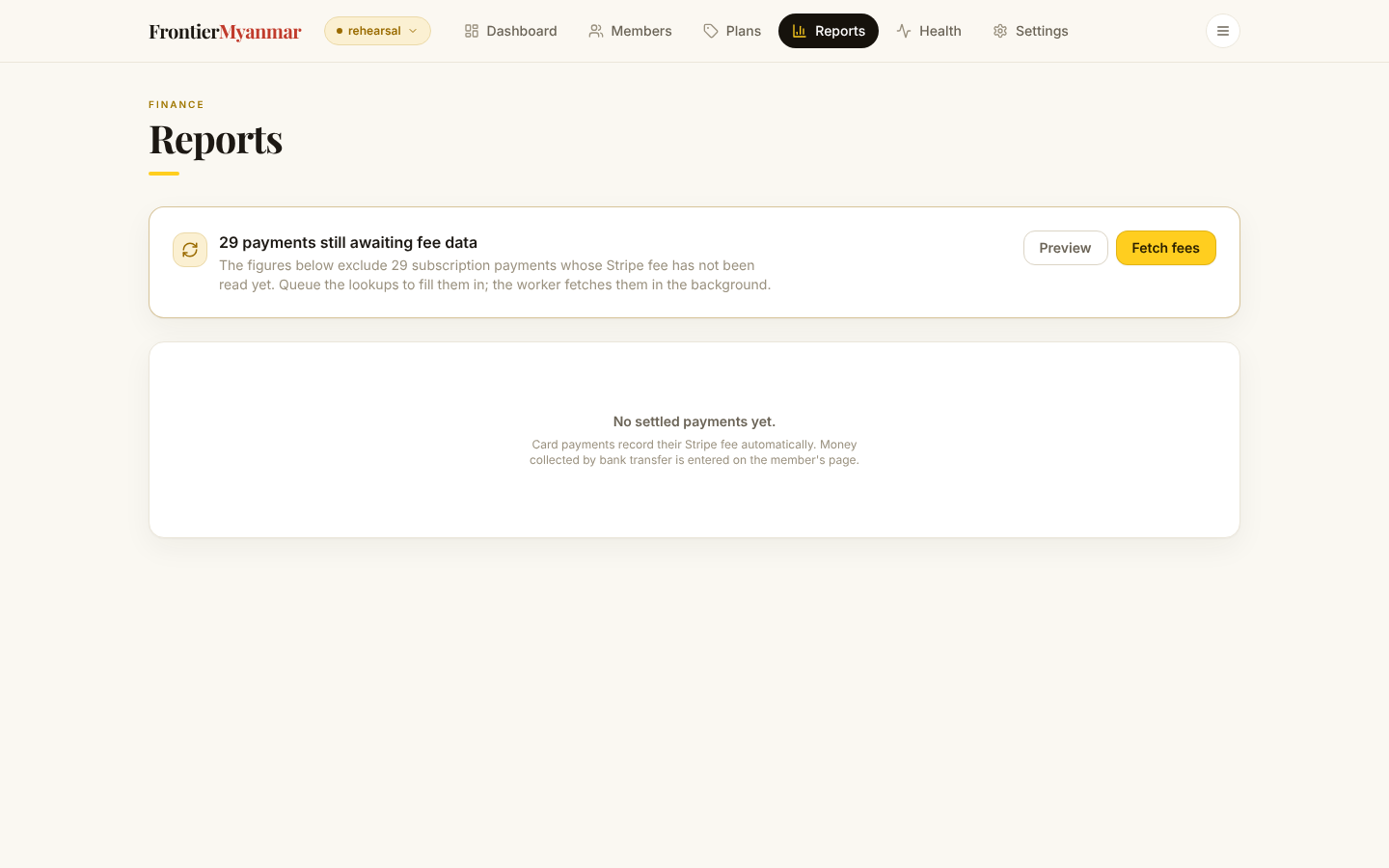
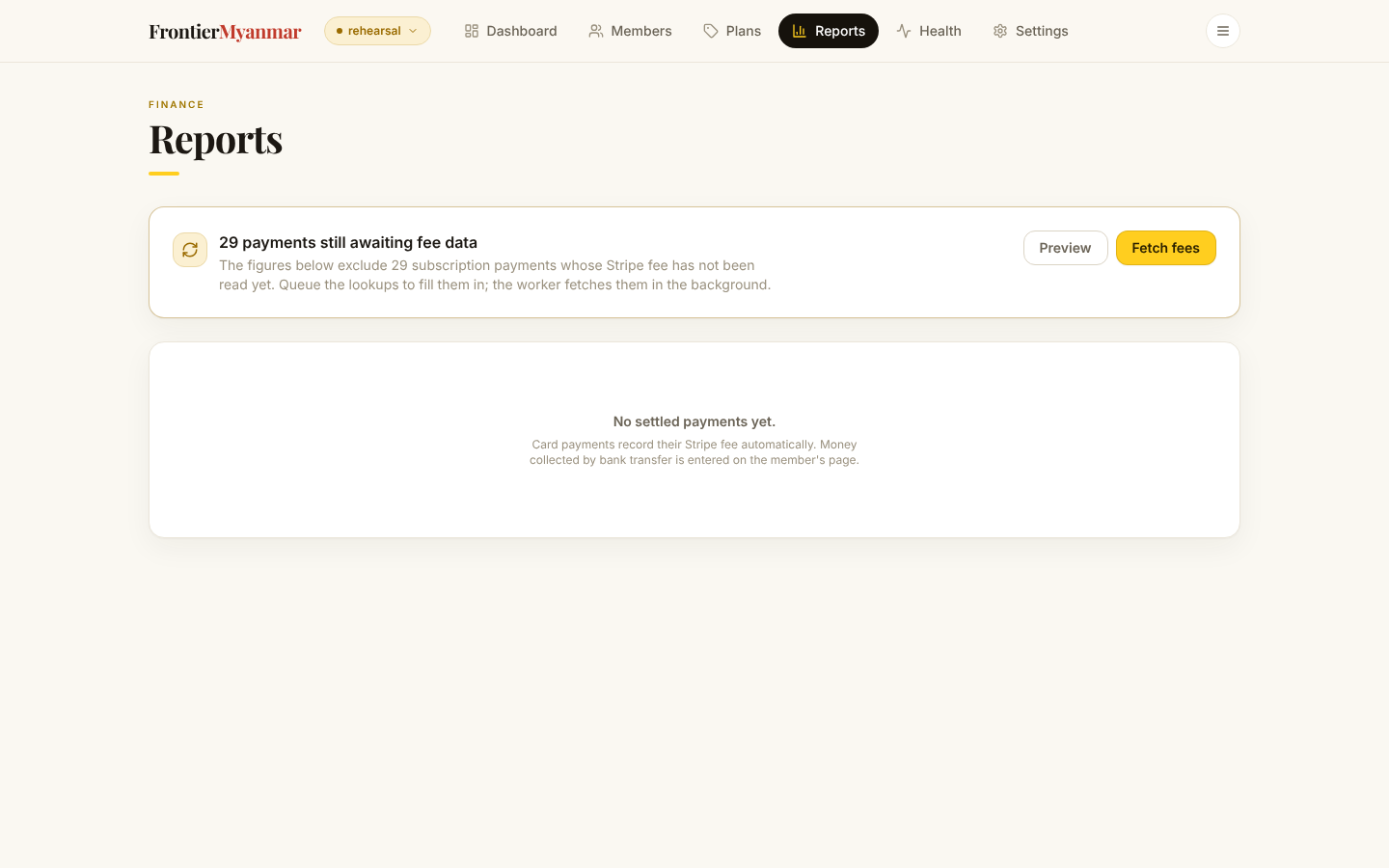
Occasionally FMS has a payment but not yet Stripe's fee for it. A warning card appears with three buttons.
- Preview shows what is missing without changing anything.
- Fetch fees asks Stripe for them. This only reads from Stripe, never writes.
- Re-check skipped reads the skipped invoices (below) from Stripe again.
The three buttons need the Finance, Membership manager or Owner role.
The work happens in the background. Come back in a minute and refresh.
Invoices recorded as nothing to settle
Sometimes Stripe says an invoice is paid but there is no charge behind it. FMS records that verdict per invoice and shows it in one of two places, depending on whether anything is asked of you:
- Nothing to do — Paid outside Stripe, Nothing charged and Refunded before it settled are final answers. These invoices appear only in a collapsed one-line note under the Money section ("N paid invoices are not in these totals…"). Open it to see the rows; there is no card and nothing to click.
- Worth a look — No charge found and reason not recorded go on the attention card at the top of the page, with Re-check skipped.
Every row shows the member, the amount, the Stripe account, the invoice id and why it was skipped:
- Paid outside Stripe — someone used Mark as paid on the invoice in the Stripe dashboard, or confirmed a bank transfer in FMS. No card was charged, so there is no fee to fetch. This is normal. (In Stripe the invoice's activity reads "payment successfully applied", and its card attempt shows as canceled at the same moment.)
- Nothing charged — the customer's credit balance or a full discount covered it. Also normal.
- No charge found — the invoice is paid and not zero, yet Stripe named no payment. Worth a Re-check skipped after a software update; if it comes straight back, open the invoice in Stripe to see how it was paid. (Before 2026-09-28 a dashboard Mark as paid was read this way; a re-check now files it under Paid outside Stripe.)
- Refunded before it settled — an Opn (Omise) payment refunded in full before Omise paid it out. Omise cancelled it and gave its fee back, so no money reached the bank. Normal.
- reason not recorded — an older write-off. Re-check to find out.
Each row has one button: Open in Stripe opens that invoice in the Stripe dashboard, in a new tab, on the right account and in the right mode (test or live). You need to be signed in to Stripe. The Stripe account column names the account the invoice lives on; to open that account itself, open it from Settings → Connections with Manage →, then press Open in Stripe.
Re-check skipped (and Re-check in Stripe inside the collapsed note) re-reads every written-off invoice from Stripe. An invoice that really has nothing to settle comes straight back — that is the verdict, not a failure.
Payments recorded by hand
A bank transfer entered through Record a payment appears here too, using the gross and net amounts that were typed in. That is why entering the real arrival amount matters.
Membership
Above the money: the membership's history over the chosen period. The Dashboard has today's numbers and the gains and losses; this section has the rest, and no chart appears on both.
- Members over time — everyone holding access at each month's end, stacked by how they were acquired. A paid member moving to free Community shows as the mix shifting, not as a loss.
- Acquisition — first-ever memberships per month, by source.
- Churn rate — of the members present at a month's start, the share gone by its end, with the average over the period underneath. A gap in the line is a month with nobody to lose, not zero churn. Retention is 1 − churn, so it is in the table rather than drawn as a second line.
- Renewals — who renewed: paid again for a membership they already had. Shown once there are renewals in the period.
- Month by month — every figure in one table, including Returned and Won back.
Click a month on any of these charts to list the members or payments behind it — see Click a month.
Renewed counts payments, not memberships
A month's renewals are read from payments that settled in it, so the figure only goes back as far as our payment records do, and a month is only as complete as its fee data. If the "fees missing" warning is showing, renewals are understated until you fetch them.
Existing in the table is everyone who was already here — the month's members less the people who joined that month.
Subscribers
Everyone whose membership overlapped the period, including people who have since left — so the list matches the charts above it rather than only showing today. Search by name or email, and filter by source, tier or whether they are current.
This is a read-only list. To change somebody, open them from the list and use their member page.
Payments
Every payment in the period: what was charged, what the provider took, what reached the bank, and the references behind it. Refunded and disputed payments stay on the list, marked as such — money that went back out is something you need to see, not something to hide.
The Account column carries a Stripe or Opn badge: which provider collected the payment. An Opn payment settles in THB, so it sits under its own THB currency. The CSV has the same answer in its Provider column.
Matching a bank statement
Search matches the method / reference as well as the payer, so if you typed the bank reference when recording a transfer — Bank transfer · KBank 240901-17 — you can find that payment by it. That is how a line on a statement is matched to a member.
Stripe pays out in batches
Card money leaves Stripe days after the charge, several payments at a time. So a month here is not the same as a month of bank deposits, and the two will not line up payment by payment. Reconcile by reference and amount, not by date.
Downloading
Both lists, and the list of skipped invoices, show ten rows a page. Use the arrows and page numbers under a list, or choose 25, 50 or 100 under Rows per page. A new search or filter goes back to page one.
Download CSV on either list takes every matching row, not just the page on screen — the screen holds up to a thousand and tells you how many there are altogether. The file opens in Excel or Sheets with the amounts as plain numbers you can total.
There is no total row, on purpose
Payments can be in different settlement currencies. Adding them up would need an exchange rate nobody used, so the file leaves that to you — total one currency at a time.
Print / Save as PDF at the top right prints the page as you are looking at it, charts and all. The lists print every row the screen holds, not only the page you are on, up to the thousand. Use the CSV when there are more.