Sandboxes
Operator page
Developers and owners only, switching included. Deleting or resetting a sandbox destroys its data with no undo.
A sandbox is a complete practice copy of FMS with its own database. Test cards, seeded data and rehearsals all live in one.
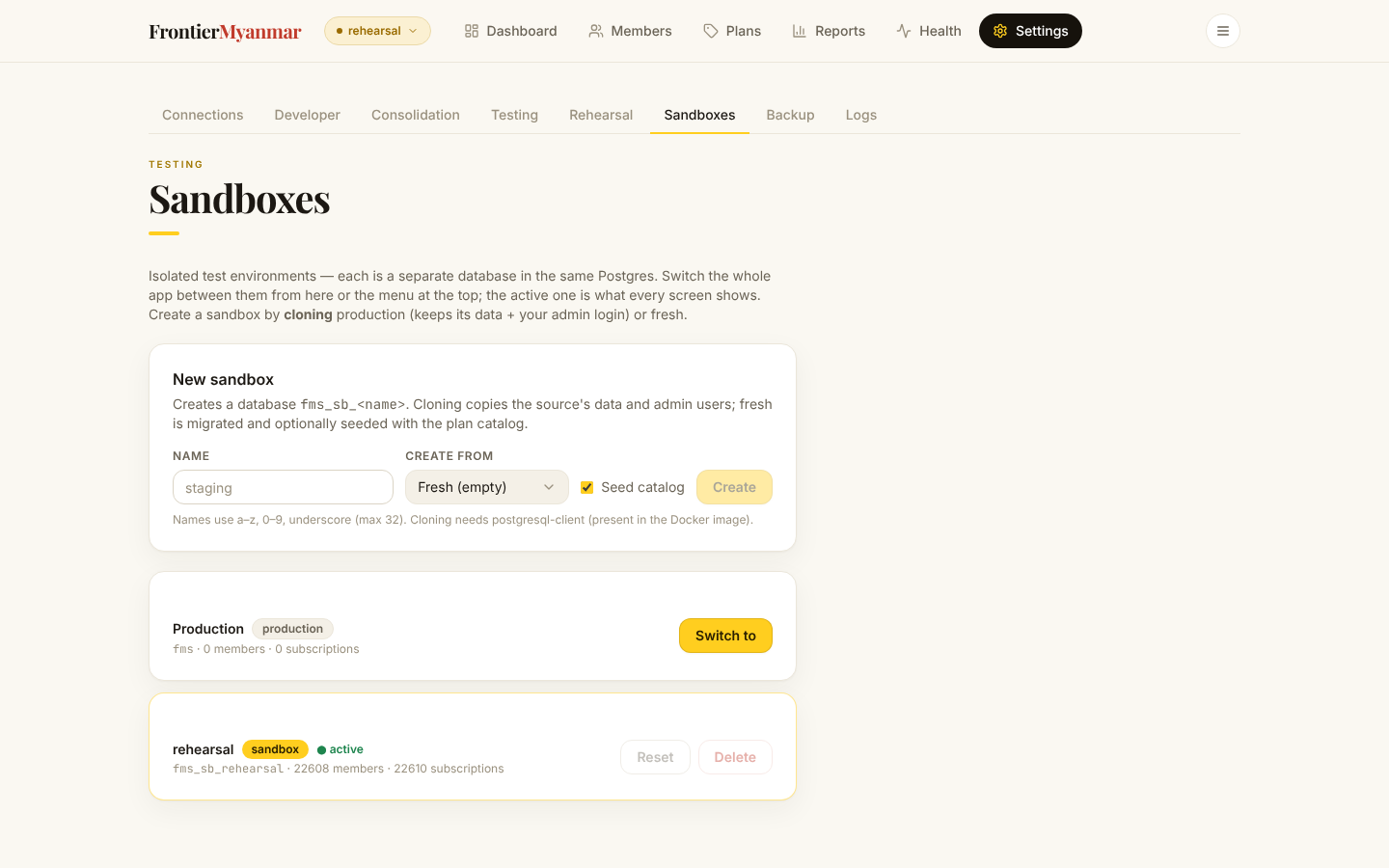
Create one
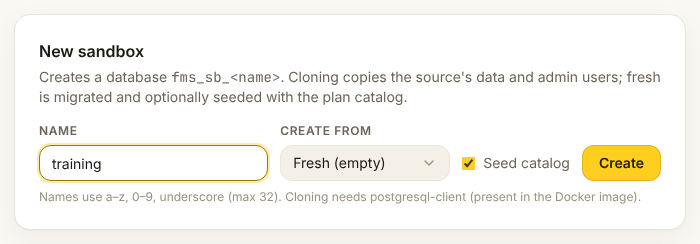
Fresh gives you an empty system. Clone copies an existing one, minus its Mailchimp connection, so a clone can never write to the real audience. Claude starts switched off in a new sandbox either way (Claude).
A copy of production keeps its live payment connections switched off
A clone copies production's Stripe and Opn connections as records only. Each live one arrives switched off, with no webhook secret. The sandbox can never use it, not even to read. Its background workers cannot be started while it holds one (Background workers).
Switching
Press Switch to on the environment you want. The portal reloads. The badge at the top left always shows where you are.
Switching changes only what the portal shows you. The real website, card payments and production's background work carry on in production whatever you switch to. You never need to remember to switch back.
Serving a sandbox to a website
A test website reaches a sandbox through its own key. Links into a sandbox say which one in their address (env=…).
- Switch to the sandbox.
- Open Settings → Developer and generate a key. Its row says Belongs to: sandbox ….
- Give the key to whoever runs the test website. They put it in its settings file.
- On the test website, press Test FMS connection. It must say Environment: sandbox ….
Every member page a sandbox shows has a yellow strip: Test environment: … — no real payments are taken here.
A copied key goes to production
A key copied from production belongs to production, even on a test website. A new copy of production carries no keys at all. Always generate the test website's key in its sandbox.
Background workers
Background work is what FMS does on its own: queued updates, member emails, renewals and the regular checks. Each card has a Background workers row.
| Environment | Background workers |
|---|---|
| Production | Always running. Cannot be stopped |
| A sandbox | Off until a developer or an owner presses Start. Runs until Stop, even after a restart |
- On the sandbox's card, find Background workers.
- Press Start. The badge turns Running, with the time it started.
- To stop, press Stop and confirm. N queued events shows what waits.
A sandbox holding a live connection cannot start
Start answers This sandbox holds live payment connections copied from production … and the workers stay off. They would renew and charge real members' cards. Switch to the sandbox and connect a test key in place of each live connection on Settings → Connections. Or create a fresh sandbox. Then press Start again.
What a sandbox's workers never do
- They never email the alert address. A sandbox's alerts stay on its own Health page.
- They send member emails only where that sandbox's own email switches are on. A copy of production starts with them off.
- Deleting a sandbox stops its workers. Resetting one starts them again if they were on.
Copy the catalogue to production
Set plans up in a sandbox, try them, then copy them to production. Only the catalogue moves.
Developers and owners can compare. Only an owner can apply: it changes what members buy. A developer sees Only an owner can apply these changes to production. instead of the button.
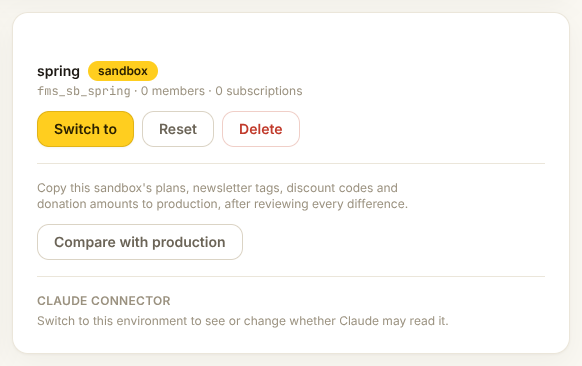
- On the sandbox's card, press Compare with production. Nothing changes yet.
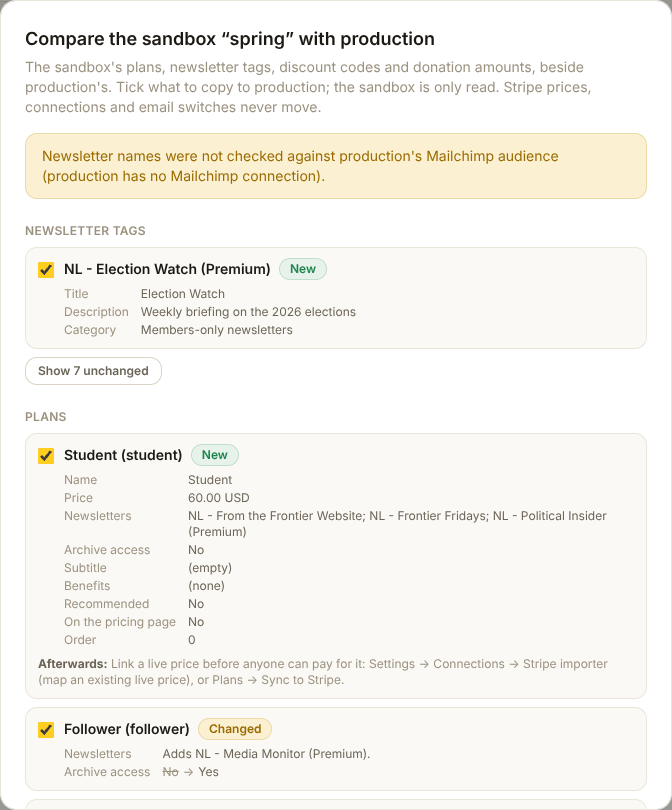
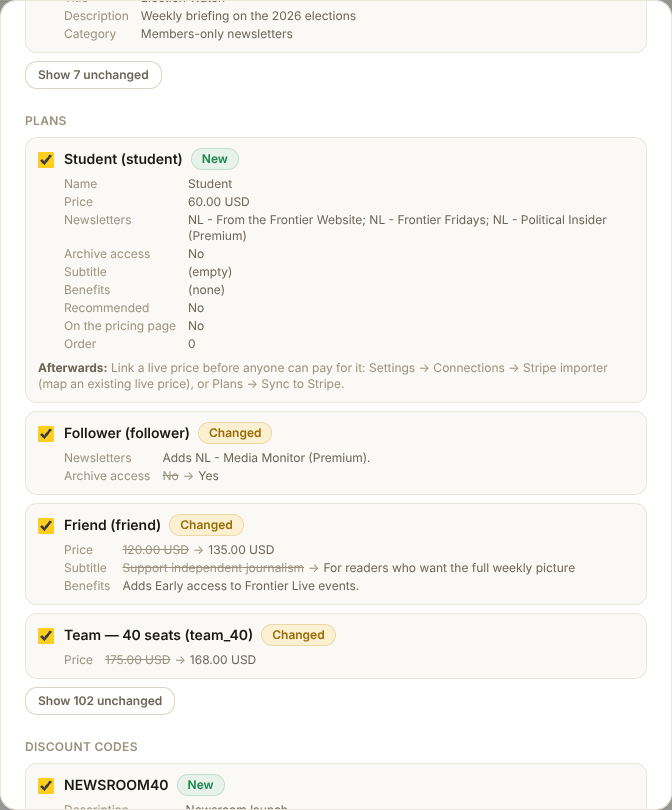
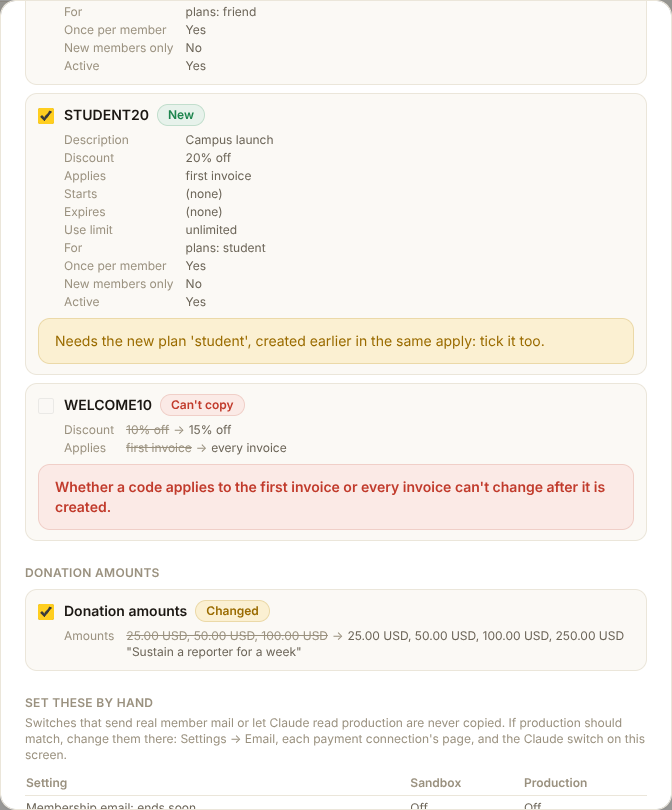
- Read each difference. A row shows the old value crossed out, then the new one.
- Untick anything you do not want copied. Rows marked Can't copy say why.
- Read the yellow notes on each row. They say who a change reaches.
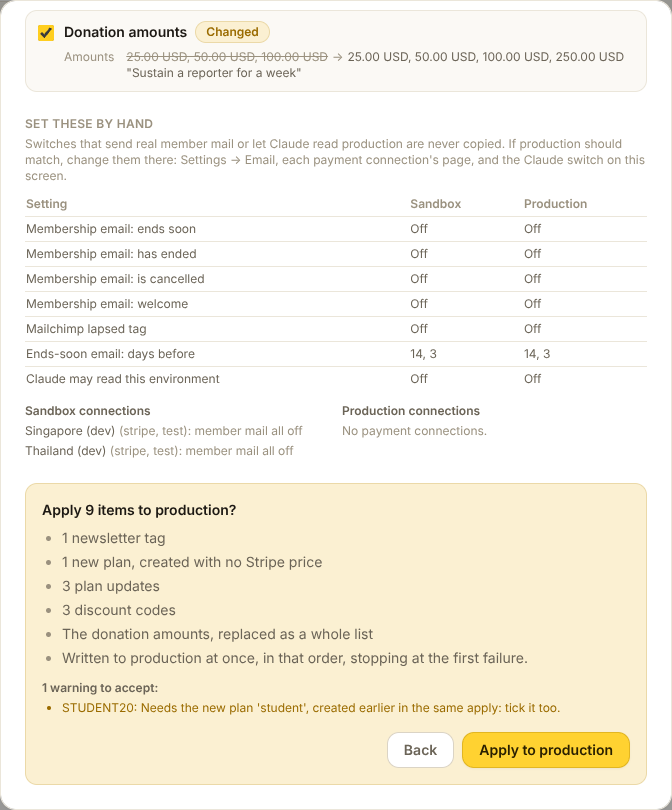
- Press Apply to production, read the summary, and press Apply to production again.
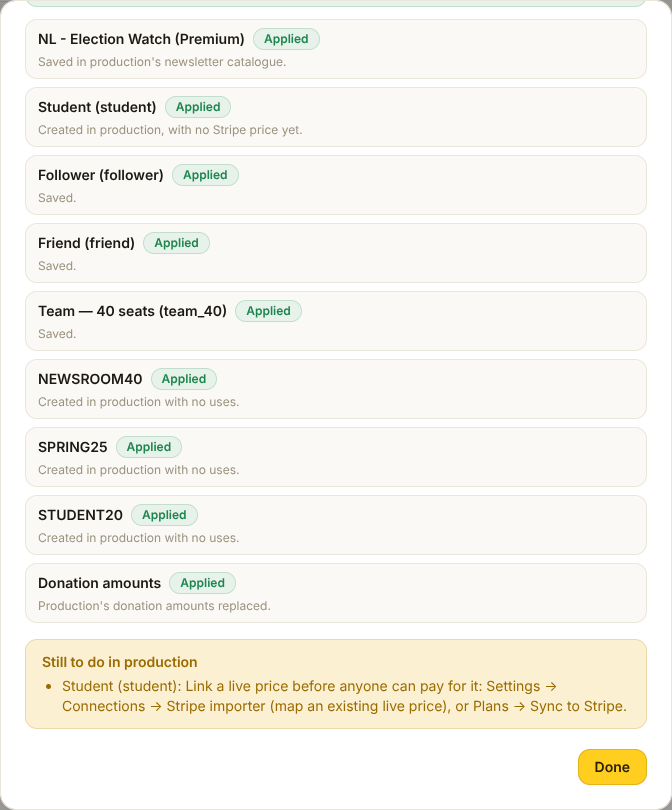
- Read the result. Do every item under Still to do in production.
| What | Copied? |
|---|---|
| Plans: name, price, newsletters, archive access, pricing-page card, on sale | Yes |
| Newsletter tags (the catalogue of names) | Yes |
| Discount codes | Yes, with their uses in production kept |
| Donation amounts | Yes, as a whole list |
| A plan's kind, tier, seats or monthly/yearly | Never |
| Stripe prices, payment connections, exchange rates | Never |
| Membership emails, connection emails, the Claude switch | Never: shown under Set these by hand |
| Members, teams, payments | Never |
What a copy sets off
- A new plan arrives with no Stripe price. Nobody can pay for it until you link one: Settings → Connections → Stripe importer, or Plans → Sync to Stripe.
- Changing a plan's newsletters re-syncs the Mailchimp tags of everyone on it. Opt-outs are kept.
- Changing a plan's price makes a new Stripe price for new members. Existing members keep theirs. On a live account it waits in Health → Dead letters until live Stripe writes are switched on.
- Changing archive access changes it for everyone on the plan at once.
Why a row can't be copied
- Production's Mailchimp audience has no tag named …: create the tag in Mailchimp first.
- Same plan code, but its kind or tier is recorded differently: fix it by hand on Plans.
- It applies to the plan …, which production does not have: copy that plan too, or change the code.
- current member(s) hold this plan: a plan with members can't be taken off sale this way.
- The catalogue changed since this comparison was made: press Compare again.
Copies run in a fixed order: tags, new plans, changed plans, discount codes, donation amounts. A failure stops the copy there. What was applied before it stays applied. Every copy is on Audit.
The rules that protect production
- Test Stripe keys can only be connected in a sandbox. Live keys only in production.
- Seeding, scenarios and rehearsals are refused outside a sandbox.
- Every payment-changing call to a live Stripe account is refused unless the system has been explicitly armed for it.
- A sandbox never uses a live Stripe or Opn account at all, armed or not. A copied one is switched off, and a sandbox that holds one cannot start its workers.
- A sandbox never deletes production's Stripe webhook, and never takes over an Opn account's webhook address while it points at production.
These are not warnings you can click past. They are refusals.
Claude
Each environment has its own Claude connector switch, at the bottom of its card. Owners only: a developer does not see it. Every environment starts with it off, production included. Claude can read an environment, and staff can connect Claude, only while that environment is active and its switch is on.
- Switch to the environment you want Claude to read. You can only change the switch on the active environment's card.
- Tick Allow Claude to read this environment. The badge turns On, with your name and the time below it.
- To stop Claude, untick it. Every question in this environment is refused at once.
On a sandbox, Claude answers with that sandbox's test data, and says so on every answer. A new clone always starts with Claude off, whatever its source said. If FMS cannot set up Claude's read-only login for this environment, the tick is refused with the reason. Pass that to the technical team. Every change is on Audit as Changed whether Claude may read this environment.