Connect to FMS
You'll need
A service key from the FMS admin portal. Get it at Service keys before you start, because it is shown only once.
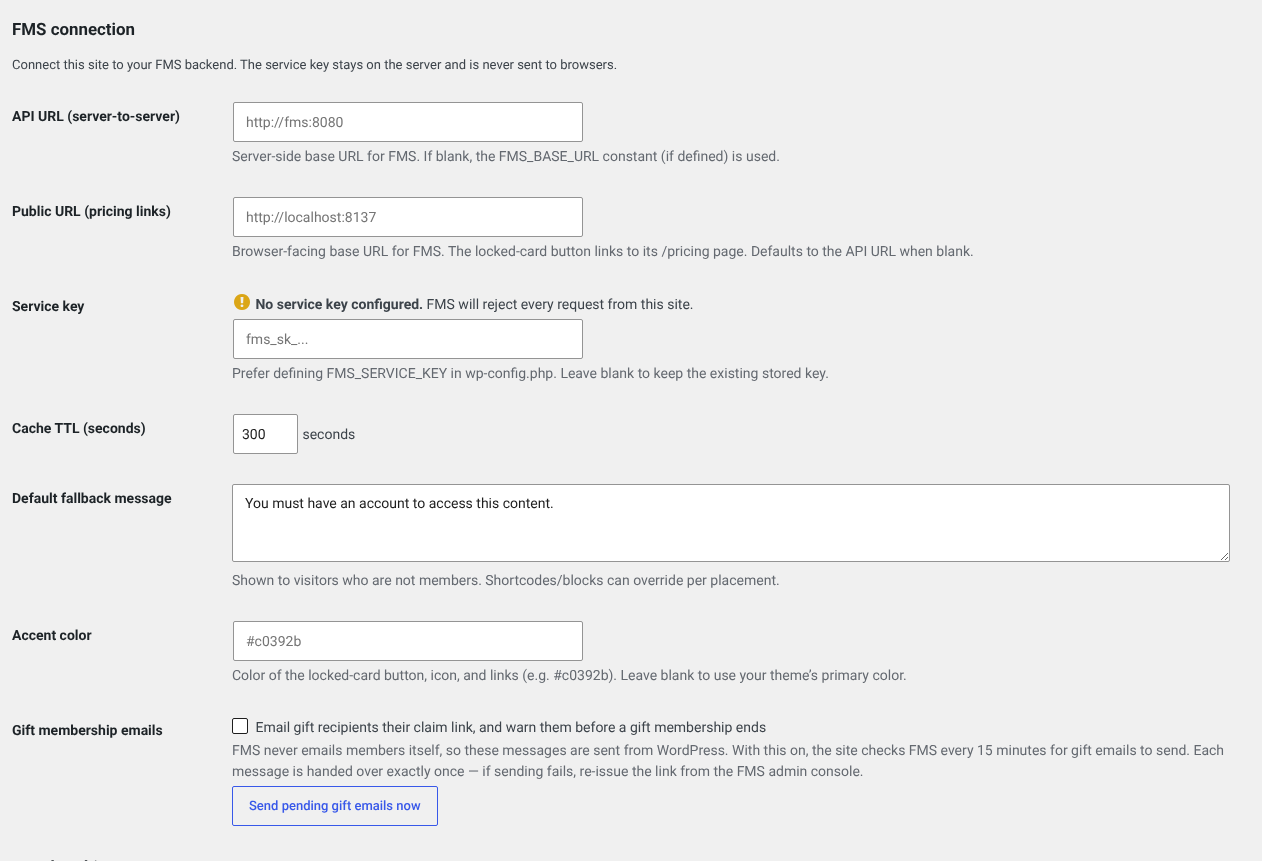
- Fill in the FMS connection section.
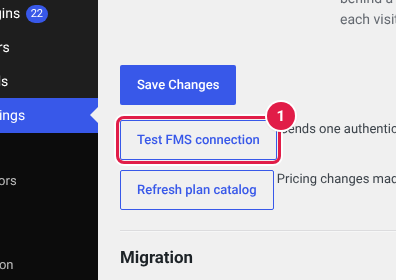
- Save, then press Test FMS connection (1).
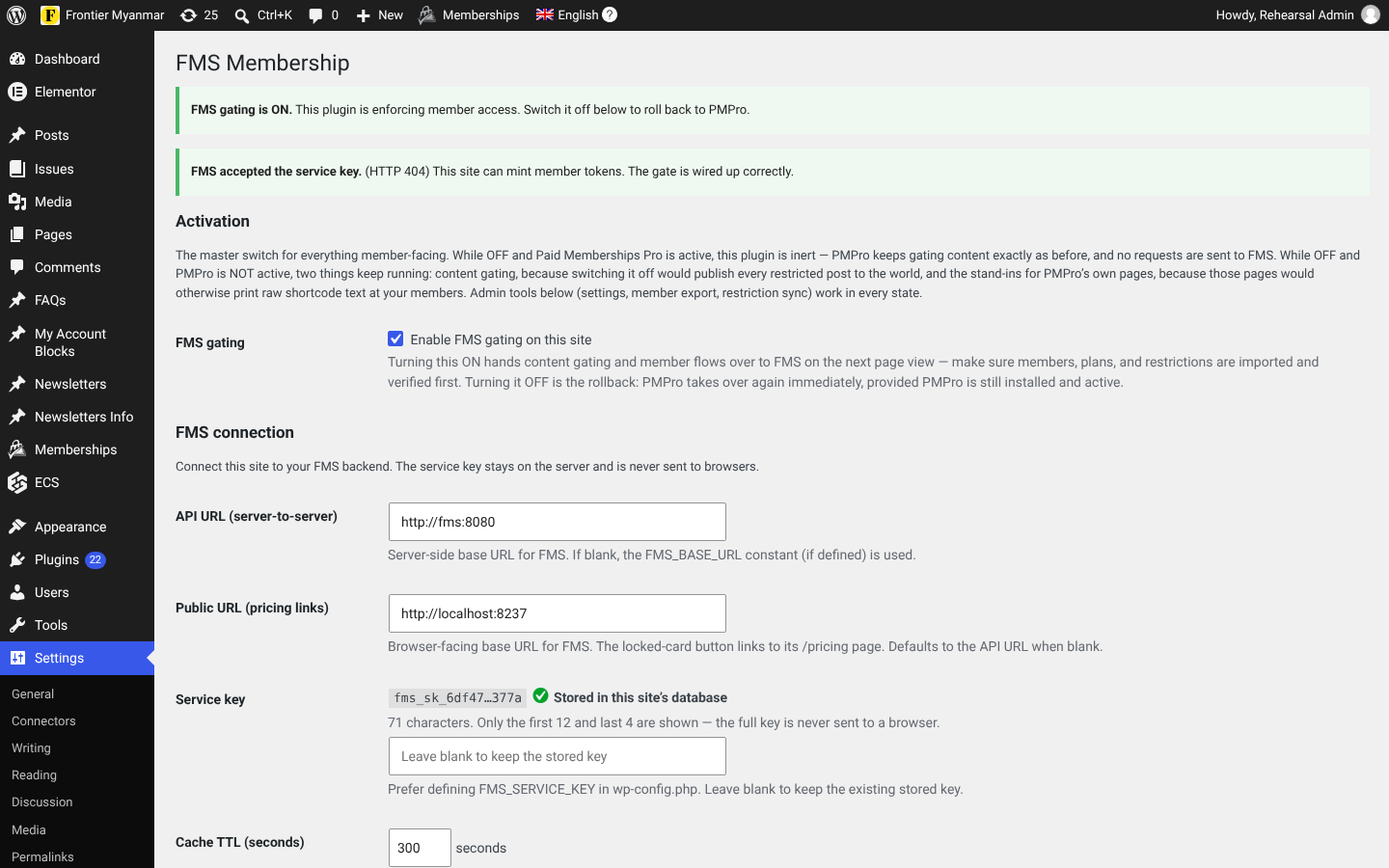
- Read the message that comes back.
What goes in each field
| Field | What to put |
|---|---|
| API URL | Where this server reaches FMS, server to server. Often an internal address. |
| Public URL | Where a browser reaches FMS. This is what pricing links point at. |
| Service key | The fms_sk_... key from the FMS Developer screen. |
| Cache TTL | How long WordPress remembers a member's access. 300 seconds is right. |
| Default fallback message | What non-members see on locked content. |
| Accent colour | The colour of the locked-content button. |
Better: put the key in wp-config.php
Defining FMS_SERVICE_KEY in wp-config.php keeps the key out of the database. The field then shows as read-only, which is the sign it worked.
What the test can say
| Message | What it means | What to do |
|---|---|---|
| FMS accepted the service key | Everything is wired up. | Nothing. |
| Not configured | The URL or the key is blank. | Fill both in and save first. |
| Could not reach FMS | No reply at all. | Check the API URL, and that FMS is running. |
| FMS does not recognise this service key | Unknown or revoked. | Generate a new one in FMS. |
| FMS knows this key but refused the request | The key is fine, this server's IP is not on the allow-list. | Add the address in FMS, or clear the list. |
| Something in front of FMS answered instead | A CDN or firewall intercepted the call. | Point the API URL straight at FMS, bypassing the CDN. |
| Unexpected response from FMS | It arrived but failed. | Check the FMS logs. |
Next: choose the member pages.