Member pages
The plugin does not create pages. You make them, put one shortcode on each, then tell the plugin which page is which.
1. Create the pages
One WordPress page per row, each containing only its shortcode.
| Page | Shortcode | What members see |
|---|---|---|
| Membership | [fms_pricing] | The public pricing page. |
| Membership Packages | [fms_team_pricing] | Team pricing with a seat calculator. |
| Join | [fms_signup] | Choose a plan and create an account. |
| Log In | [fms_login] | The sign-in box. |
| My Account | [fms_account] | The account hub. |
| Newsletters | [fms_newsletters] | Newsletter choices. |
| Membership & Billing | [fms_billing] | Their plan and payment details. |
| Invoices | [fms_invoices] | Their payment history. |
| Cancel Membership | [fms_cancel] | The cancel confirmation. |
| Profile | [fms_profile] | Change email or password. |
| Manage Team | [fms_group] | Team seats, for team admins. |
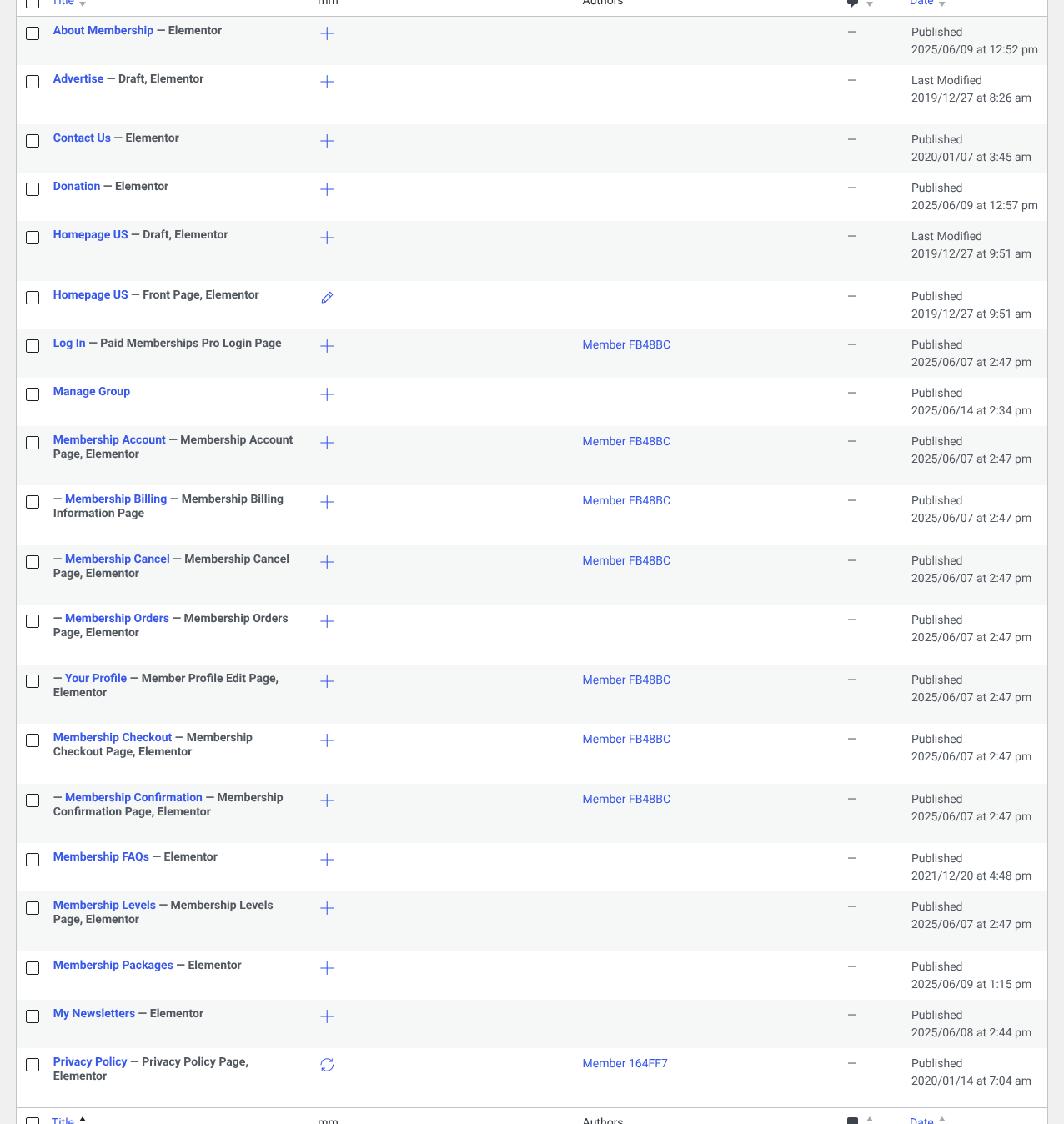
2. Tell the plugin which is which
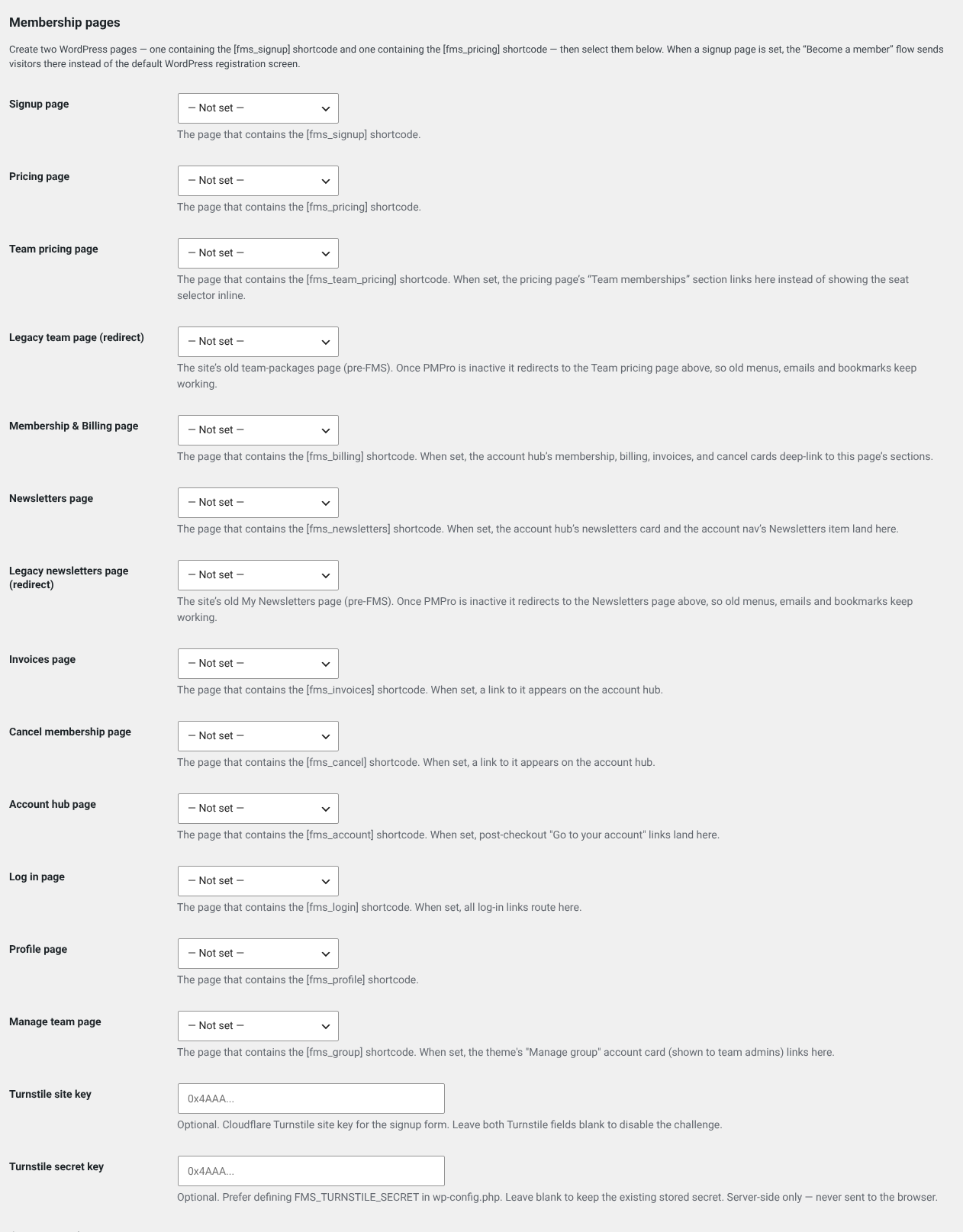
Choose the matching page in every picker and save. A picker left empty means that link goes nowhere.
3. Check every page
- Each page loads without showing raw text like
[fms_account] - The pricing page lists your plans with the right prices
- Signed out, My Account sends you to Log In
- Signed in, My Account shows the hub
While the master switch is off, most of these render empty
That is deliberate, so half-built pages never leak shortcode text to readers. Test them properly only after the switch is on, or on a practice site.
The same table, with the WordPress-side detail about translations and theme copy, is in the repository at docs/migration-runbooks/wordpress-pages.md.