Gate a post
Three ways to lock content: the whole post, part of a post, or everything by default.
Lock a whole post
Every post and page has an FMS access box in the editor.
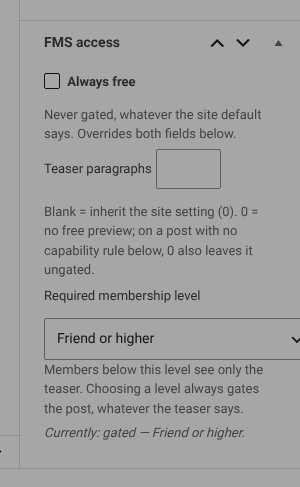
- Always free overrides everything. Use it for the about page and anything promotional.
- Teaser paragraphs is how much of this post everyone can read. Blank uses the site default.
- Required membership level is who gets the rest.
A line at the bottom says what is currently in force, including rules inherited from the site settings. Read it before you change anything.
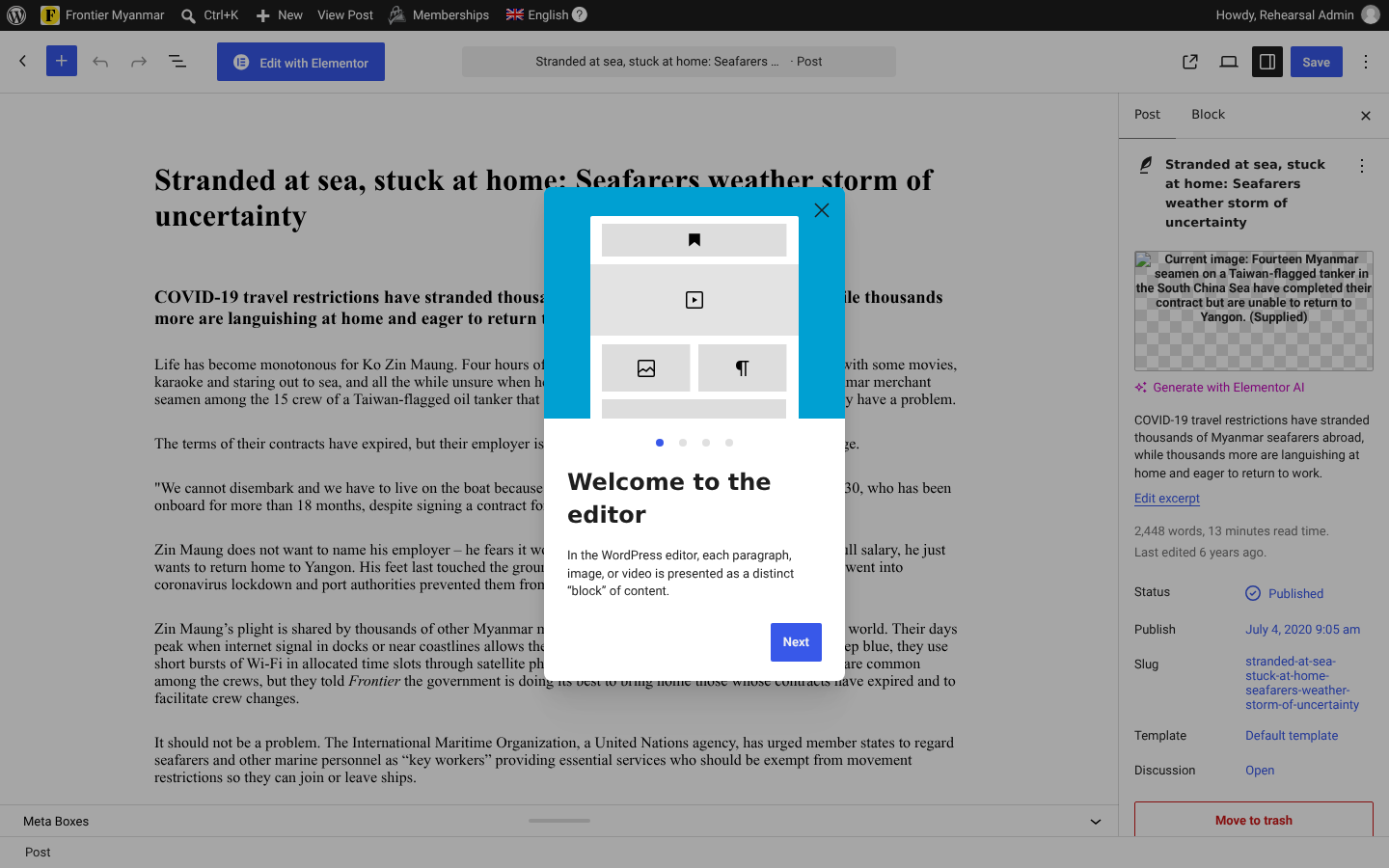
Lock part of a post
Wrap the members-only part in the gate shortcode:
text
Everyone can read this opening.

[fms_gate]
Only members can read this part.
[/fms_gate]
You can override the message for one placement:
text
[fms_gate title="Members only" message="Join to read the rest." cta_text="See plans"]In the block editor the same thing is available as the FMS Member Gate block. Add it, put your protected blocks inside, and set the level in the block sidebar.
Lock everything by default
Switch on Gate all posts in content gating settings, then mark the exceptions Always free. Safer for a members-first publication, because forgetting to lock something is the expensive mistake.
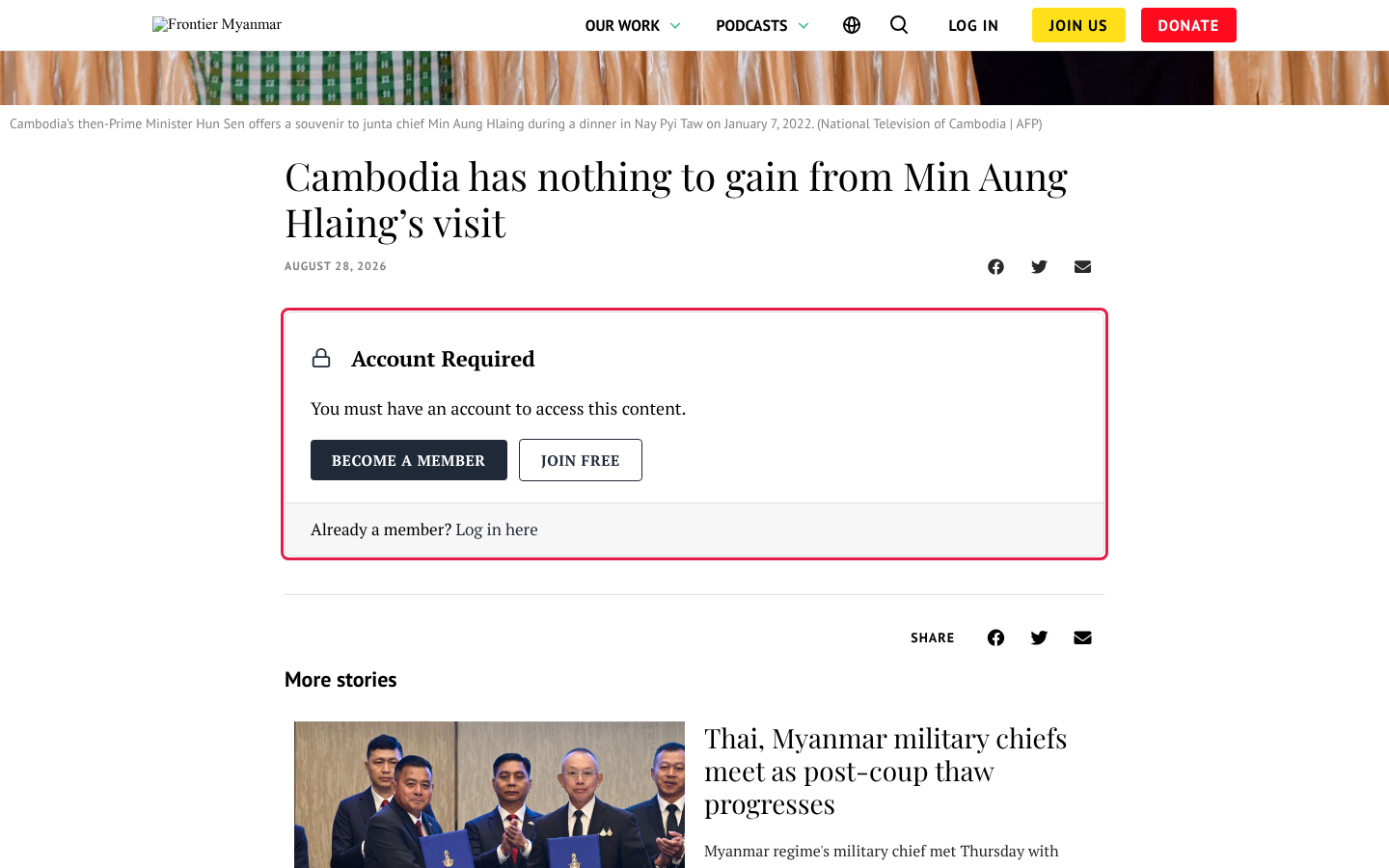
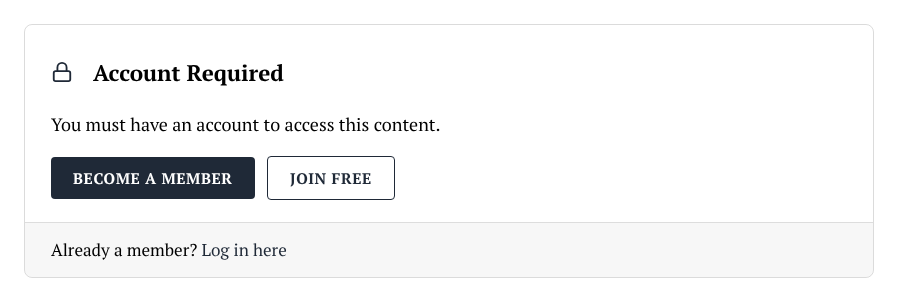
What readers see
Check it worked
- Signed out, you see the teaser and a locked card
- Signed in as a member with the right level, you see everything
- Signed in as a member without it, you see the locked card